Your family guide
A clear start.
A place for every child.
Find your way from your first sign-in to your child’s plans and lessons. Keep this guide nearby as you get to know your school workspace.
Open family workspace
Your visual guide
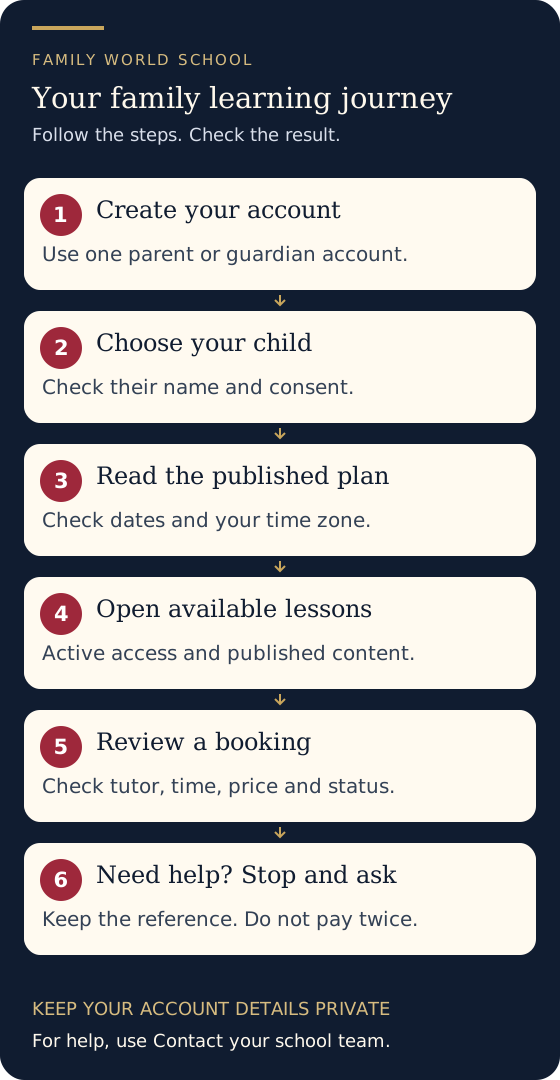
See the journey at a glance
Account, learner consent, published plans, available lessons, booking review and school support.
Use the detailed steps below for the checks that apply to each action.
Something does not match your screen? Contact the school.
Ten quick answers
How do I join my child's lesson?
Open your family page. The Next session card is the first thing you see. The Join session button appears 15 minutes before the lesson and goes away when it ends. The educator lets your child in from the waiting room.
What time is my lesson in my time zone?
Every time shows a plain zone name, for example Mon 26 Oct, 12:30 PM US Eastern time. Set your zone under your child's profile with Use my device's time zone.
I paid, but it says pending.
Do not pay again. PayPal can take a few minutes to confirm. Open Payments, then Refresh. If it is still pending after an hour, write to the school from that payment: the payment details come with it.
How do I move or cancel a lesson?
Ask the school from your reservation. Your calendar copy does not update by itself, so download the new one after the change. A paid lesson that is cancelled is reviewed by the school, and the school contacts you about any refund.
How does a free trial work?
The school gives you a code. Enter it where you book a tutor, pick your child, and review the time. No payment is needed. You get an email with the time before the lesson.
Why can I not book on Friday evening or Saturday?
The school observes Shabbat. Times from Friday sunset until nightfall on Saturday are closed in your time zone and in the educator's.
What is guardian consent and why does my child need it?
It is your written permission for your child to take part. Lessons stay locked until it is recorded. You can record it on your family page, under your child's name.
Which account do I use if I forgot my password?
Use the reset option on the sign-in page with the email the school has on file. Please do not make a new account: your lessons are on the account you already have.
Do my child and I need a phone code to sign in?
Not for families. Staff and educators use a phone code. If your account has one, you will be asked for it after your password, and you can use a backup key if your phone is lost.
Who do I write to?
Use the Contact the school link next to the thing you need help with. It sends the topic and lesson details along, so you do not need to copy codes. The school replies, and after Shabbat if you write on a Friday evening.
Step 1
Start with your family account
A parent or authorized guardian creates the account. Add your first learner with their age and country, then read and complete the guardian consent statement.
Already started? Use the same email and password to finish setup. If you already have an account, sign in instead of creating another.
Create a family accountStep 2
Choose the child you are helping
In your family workspace, use the child buttons near the top of the page. Check the selected name before opening lessons, reviewing a plan or booking a session.
Each child has their own enrollments, published plans and recorded-lesson progress. A sibling’s enrollment does not automatically provide access.
Open your family workspaceStep 3
See the school day and weekly plans
Your school day shows available sessions. Weekly Rhythm shows the published timetable, including local and Eastern Time labels. Open Weekly plans for the selected child to read work released by the school.
If a plan is awaiting release, earlier published work remains available. An empty timetable or missing classroom link does not mean a live class is ready to join.
Go to weekly plansStep 4
Open your enrolled courses
Under Your courses, check the enrollment status and published lesson count. Use Continue to open available recorded lessons. Your course card shows recorded-lesson progress.
No recorded lessons have been published yet means the school still needs to release content. Ask the team about availability rather than paying again.
Find your lessonsStep 5
Keep your child’s profile up to date
Under Your family account, select Edit child profile. Update the learner name, grade label, learning preferences or time zone, then select Save profile. Clearing an optional field removes its saved value.
Use a time zone such as Africa/Johannesburg or America/New_York. Contact the school for age, country or consent corrections.
Open your family accountStep 6
Review tutoring before reserving
Select your child and review the tutor, available time and price. Check the time zone and session details before continuing. Only use the payment step offered by the platform when checkout is available.
A reservation is not proof of payment or a confirmed classroom. Check the reservation and payment statuses. If a checkout is pending or uncertain, contact the school before attempting another payment.
Review tutoring options